← PLC Sidecar
Guide

User guide

From the first start to rolling back an older version. No programming, no scripts — the work you know from TIA Portal, with an AI at your side.

What you need

TIA Portal V17 to V21 on Windows — on its own PC, on a server, or in Parallels Desktop on a Mac.

A Mac with Apple silicon or a Windows PC for the PLC Sidecar app.

Access to an AI model you trust (for example Claude). PLC Sidecar talks to it for you.

01

Start and connect to TIA Portal

  1. On the computer with TIA Portal, start the PLC Sidecar helper (desktop icon). It finds open TIA Portal windows by itself.
  2. On your computer, open the PLC Sidecar app. In the left panel, under Target, you see the open projects.
  3. Click the project you want to work on. A green dot means the connection is fine.

The app tells a test copy from a production project by itself. For production it always asks twice.
PLC Sidecar
Start and connect to TIA Portal
02

Load the program

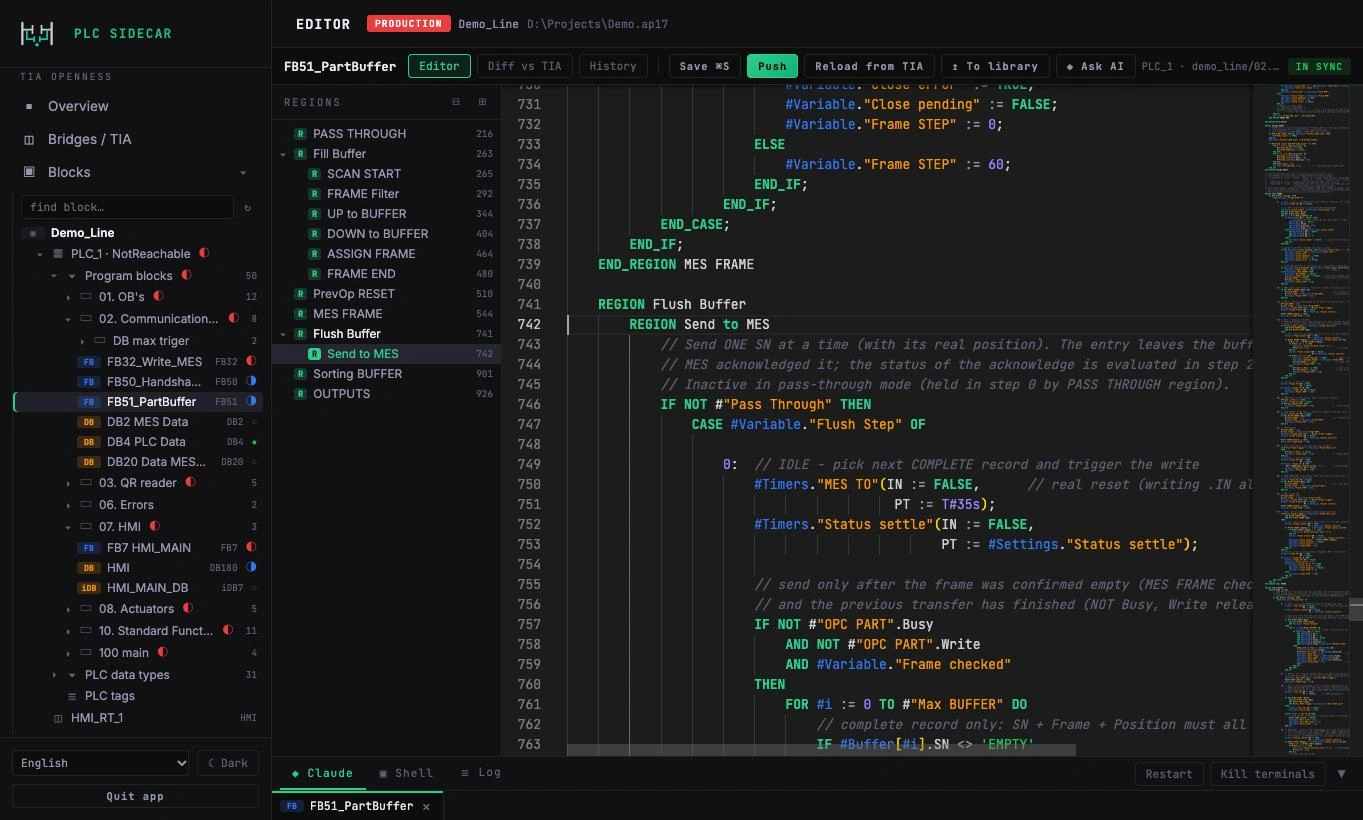
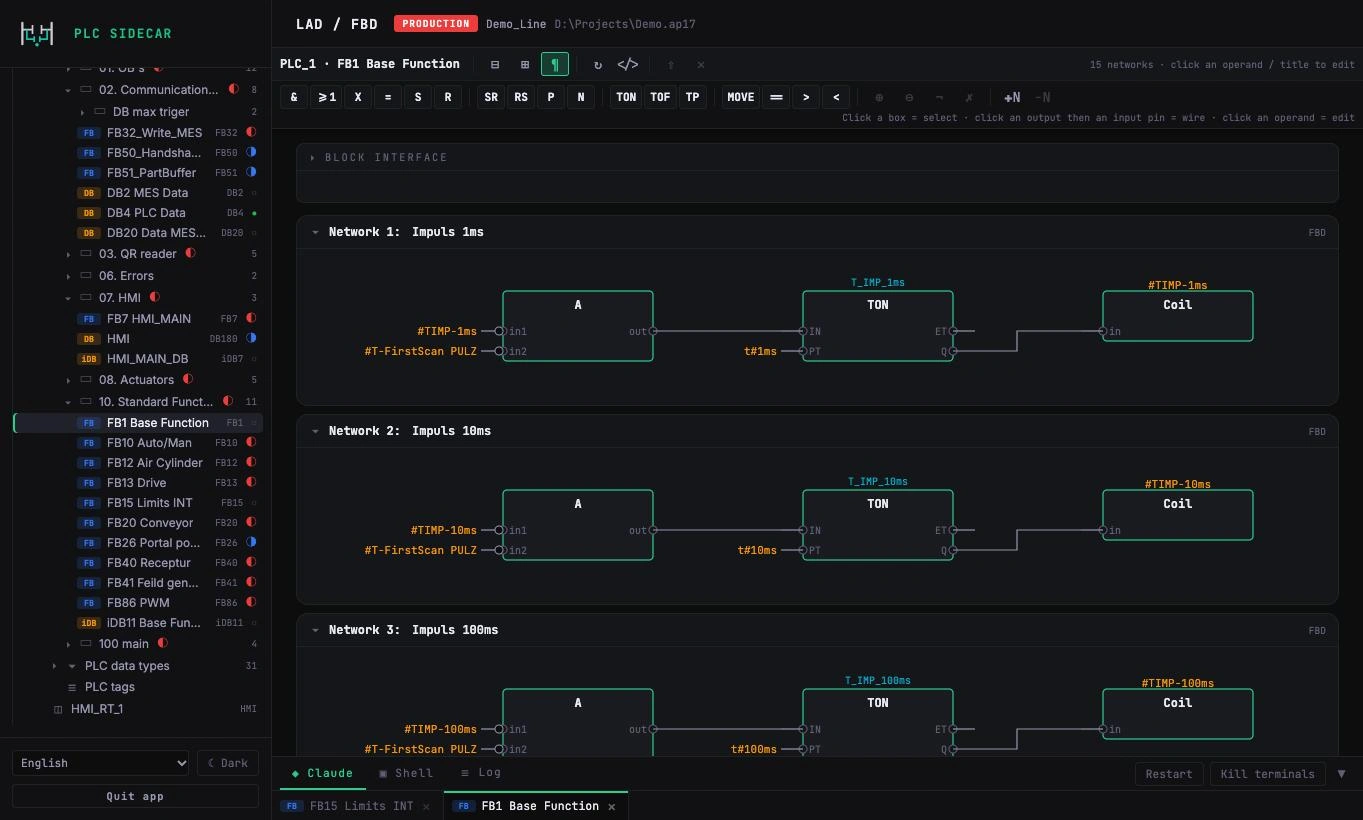
  1. Open Blocks. You see the program tree just like in TIA Portal.
  2. Select blocks and click Pull. The block text appears in the editor.
  3. Open graphical blocks (LAD, FBD) in the LAD / FBD tab — they are drawn network by network.
PLC Sidecar
Load the program
03

Edit with AI

Tell the AI what you need in plain words: “add supervision of the analyser communication and a message on the panel”. The AI reads the blocks, proposes a change and edits them in the editor. You see every line.

  1. Ask AI sends the selected block and the lines you are on.
  2. You can always edit the code by hand, as in TIA Portal.
  3. The standards library makes the AI write in the style of that customer.
PLC Sidecar
Edit with AI
04

Review before pushing

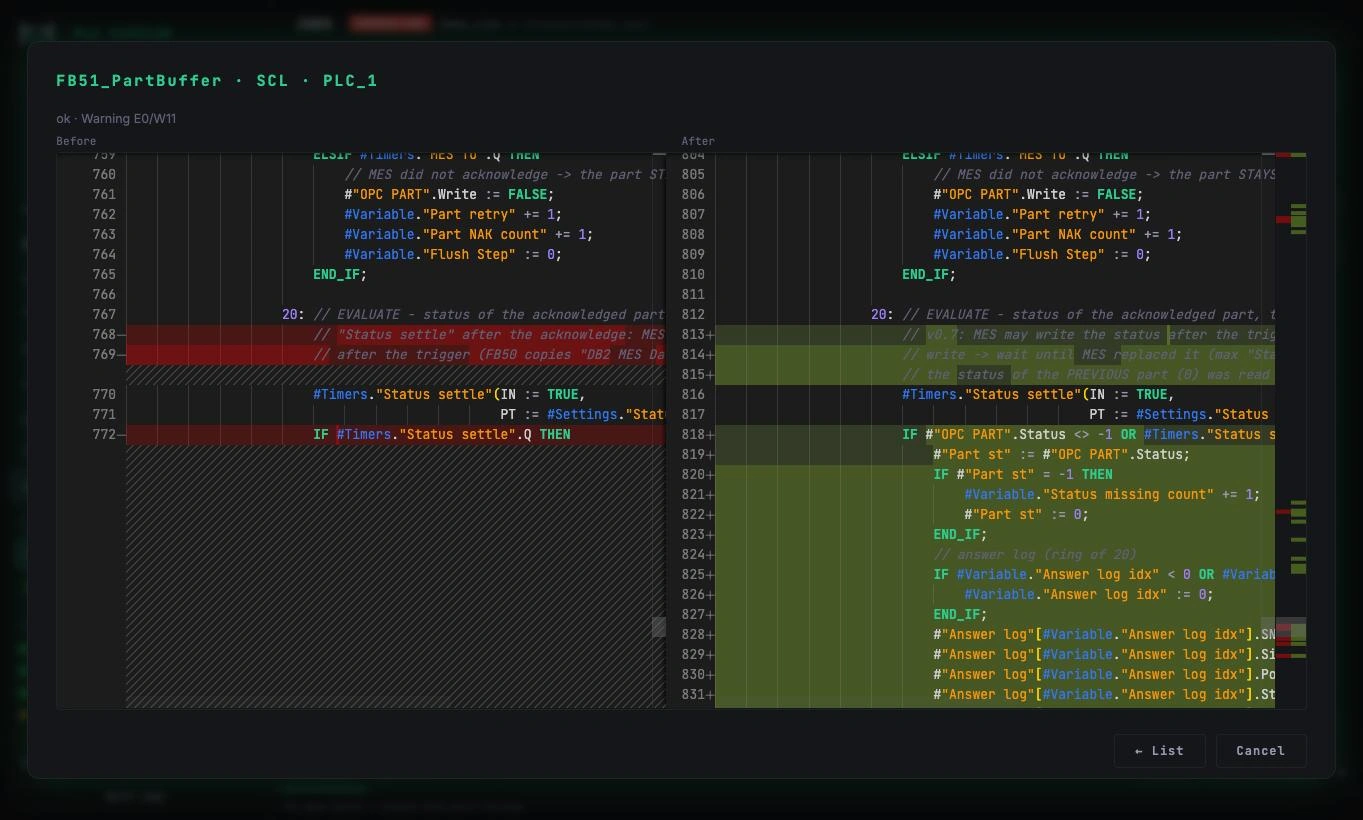
Before every push an overview opens: on the left the state in TIA Portal now, on the right what will be sent. Each block shows lines added and removed; a click opens a line-by-line comparison.

If somebody changed a block directly in TIA Portal in the meantime, the app stops and offers to take it over.

PLC Sidecar
Review before pushing
05

Push, compile and save

  1. Click Continue to push. For a production project you type its name — a safeguard against mistakes.
  2. The app creates a version, pushes, compiles, saves the project and checks that TIA Portal is still running.
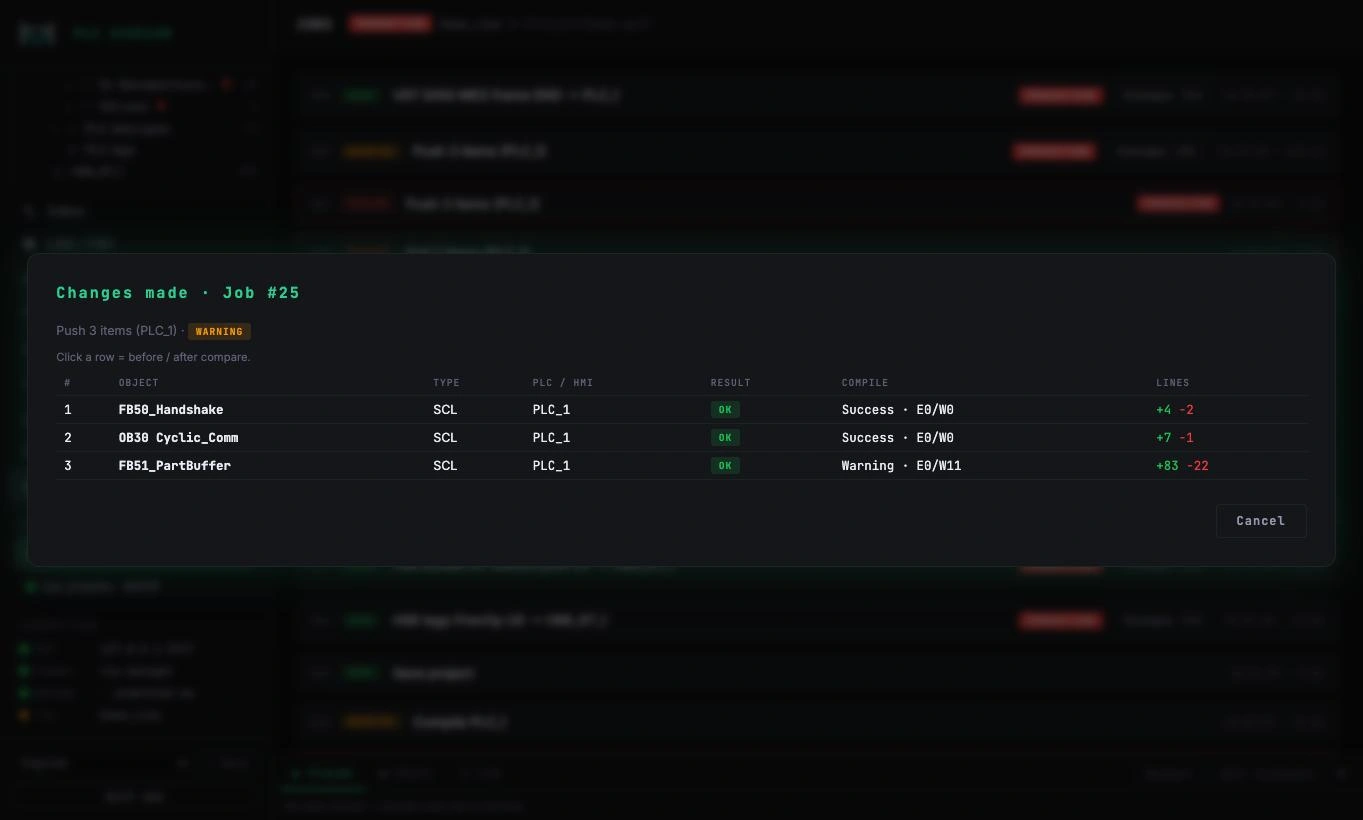
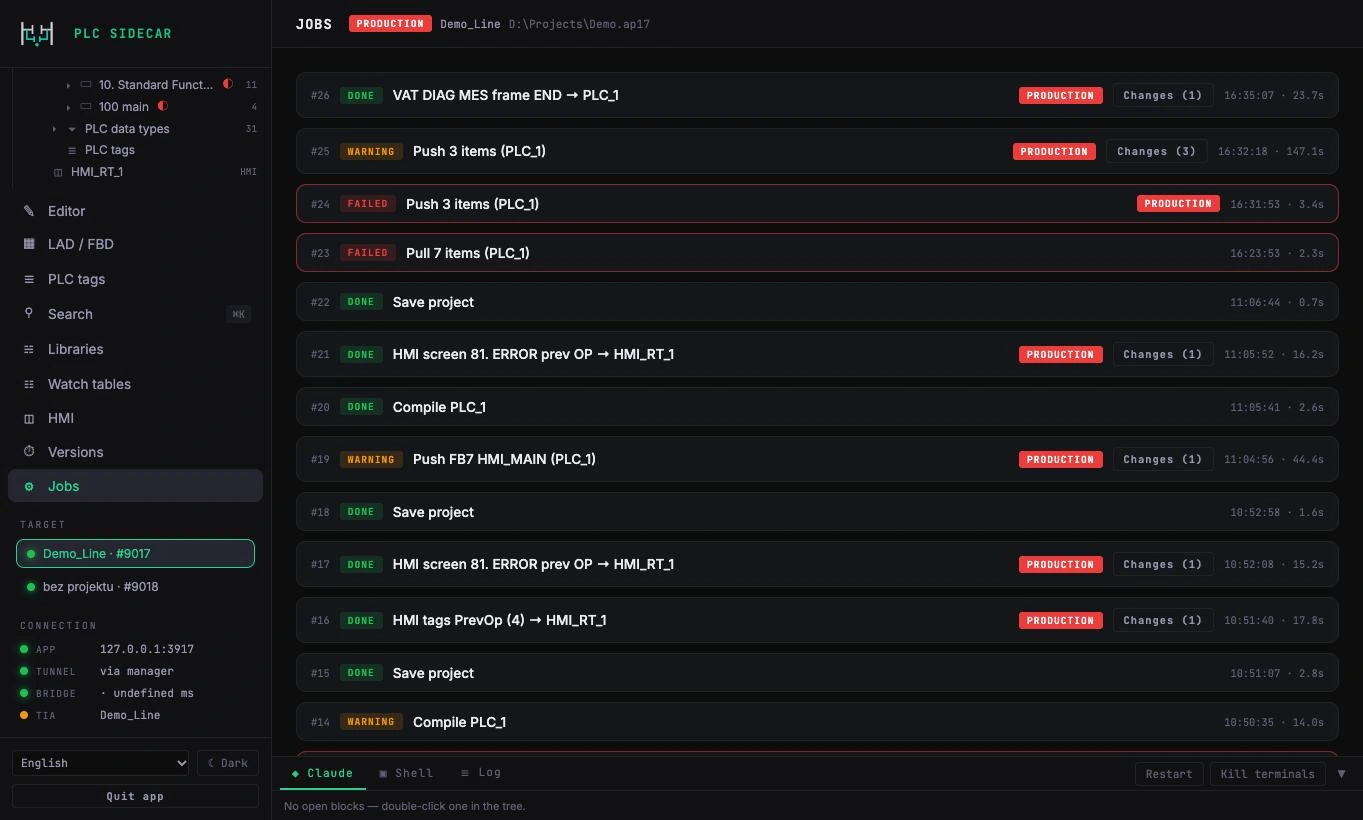
  3. The result is in Jobs: what changed, the compile result and the changed lines.

Nothing is downloaded to the PLC. Downloading to a running machine stays your step, in TIA Portal.

PLC Sidecar
Push, compile and save
06

Versions and rolling back

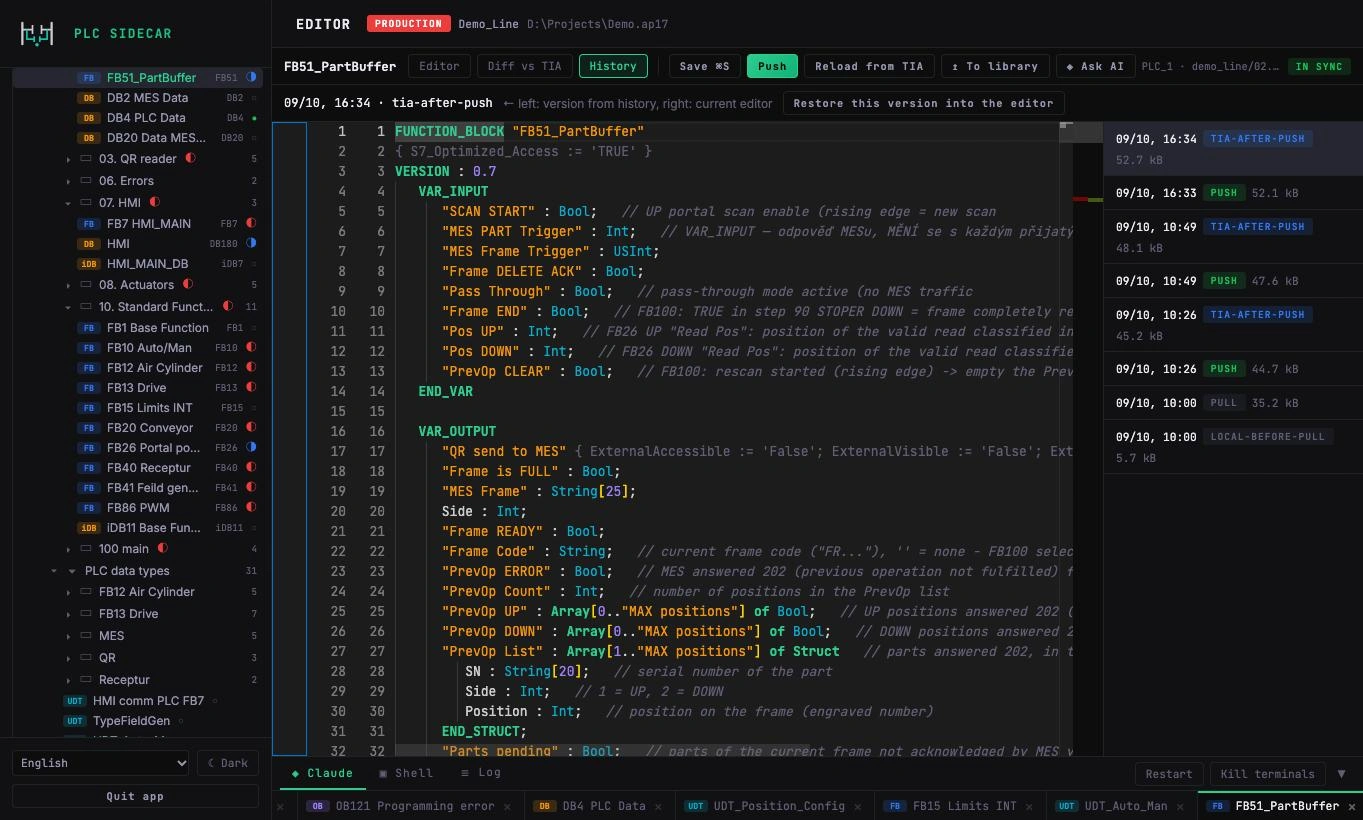
Every change has a version before and after, with a short AI description in several languages.

  1. Open Versions. For every version you see what changed and why.
  2. Compare with current: the version against what is in TIA Portal now.
  3. Roll back to this version: the whole version, or only selected blocks from the list of changes.
  4. When you finish your edits, the app can also save a TIA Portal project archive.
PLC Sidecar
Versions and rolling back
07

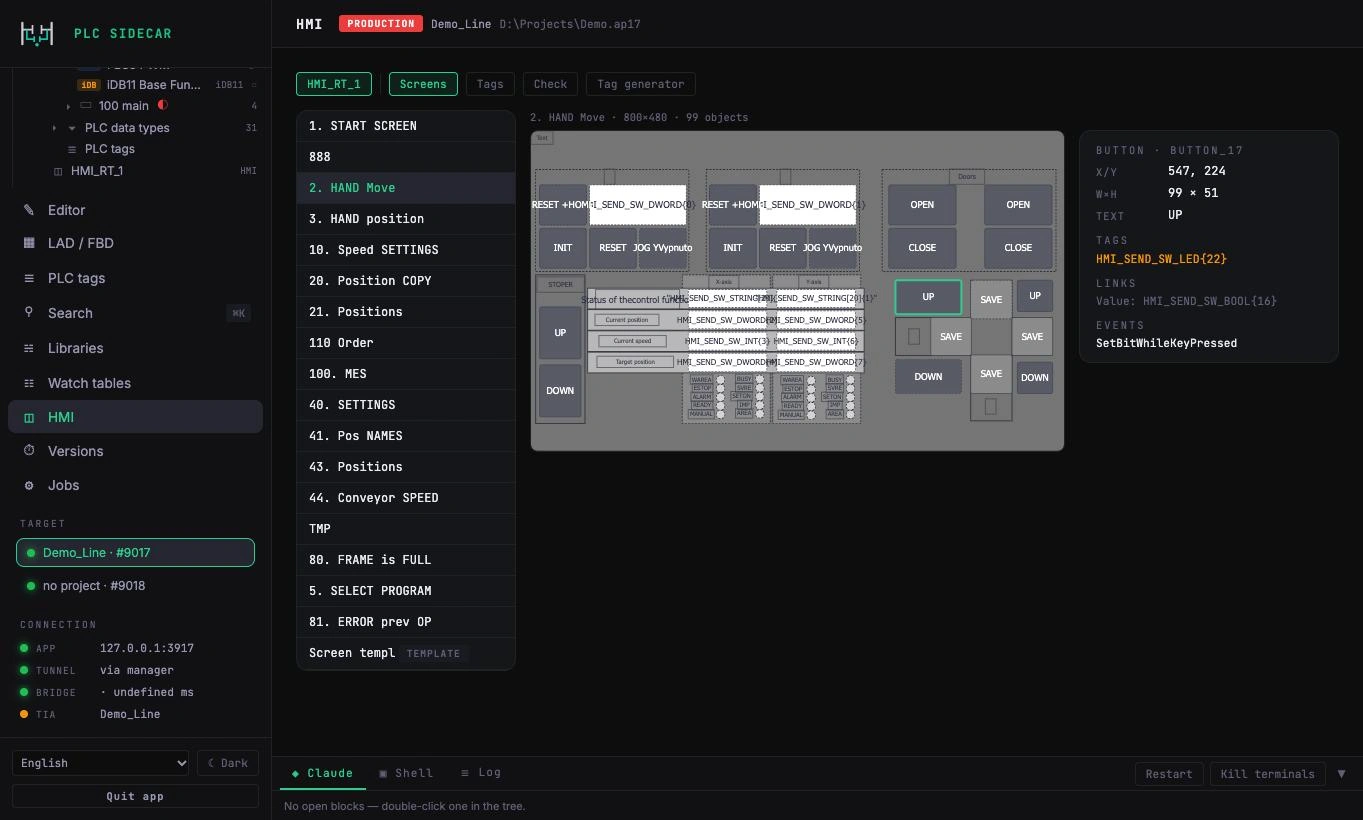
HMI and watch tables

In the HMI tab you browse screens, see tags and events for every object and let the AI prepare a new screen or tags. Watch tables for diagnostics are one request away.

PLC Sidecar
HMI and watch tables
FAQ

Frequently asked questions

Do I need to program or write scripts?

No. You work in the app and talk to the AI. The PLC code stays yours and you see every change.

Can the AI send anything to the PLC on its own?

No. PLC Sidecar does not download to the PLC. Only what you approve goes into the project.

What if something goes wrong?

Every change has a version before and after. Roll back the whole version or single blocks with one click.

Where is the data?

Your project stays with you. Versions are stored on your computer.

Did not find the answer? Ask in the forum.

Go to the forum

The handlebars stay with you.

PLC Sidecar never downloads to the PLC. Going online with a running line stays your decision.

// Built by a PLC programmer, for PLC programmers.